Direct answer
Use Stadium Builder from the Stadium & Field area of Team Builder on a supported desktop browser. Choose Custom to start from one of four editable stadium bases, then configure structures, crowds, presentation audio, field details, and branding before saving and submitting the full Team Builder school for import into College Football 27.
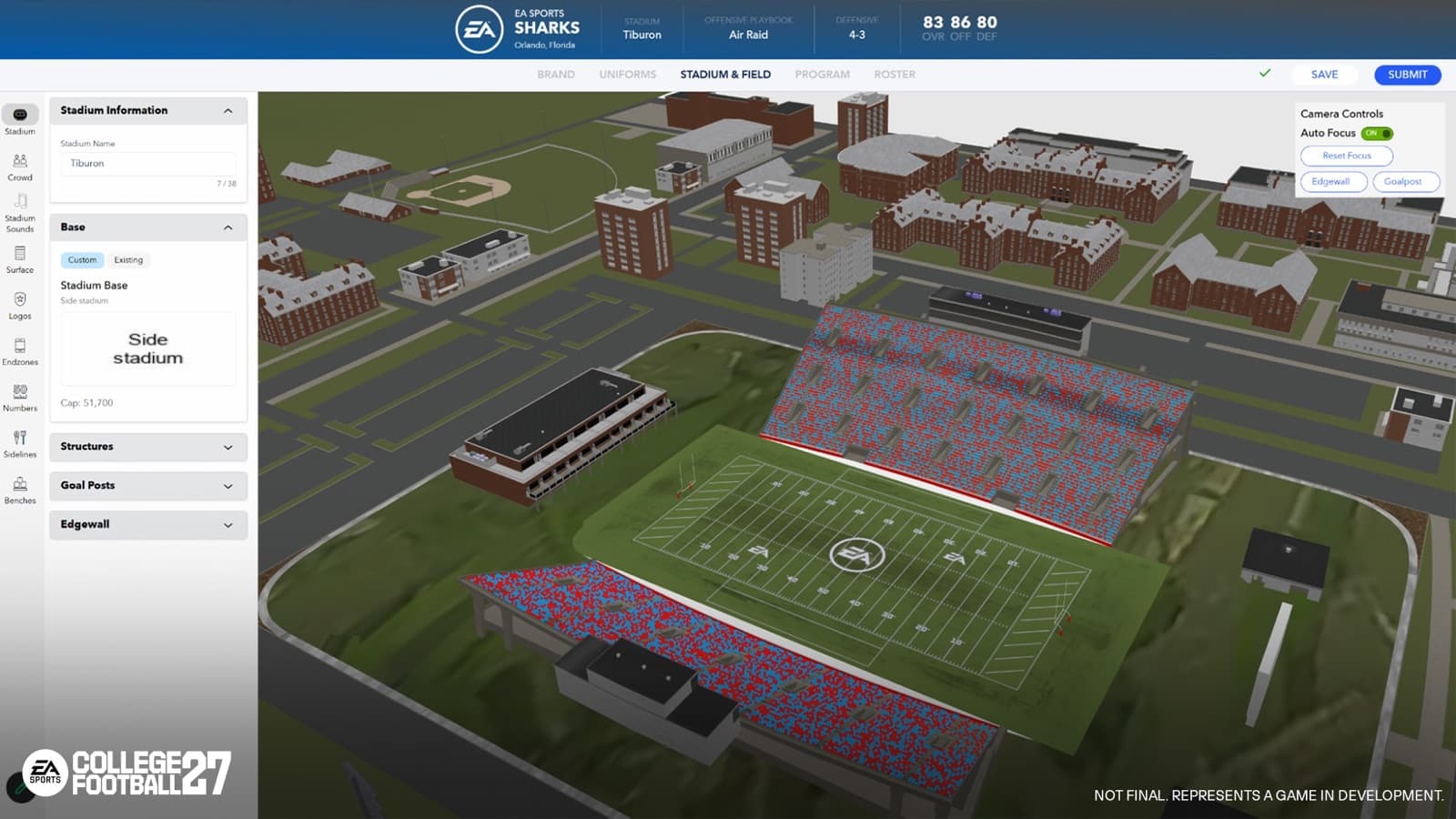
Official Team Builder stadium-editor capture showing the custom venue workspace and preview. Official pre-release development capture; the live interface may differ.
What Stadium Builder does and what you need
Stadium Builder is part of the web-based Team Builder workflow. EA says Team Builder works in desktop browsers on traditional operating systems such as Windows and macOS; phones, tablets, and Chromebooks are not supported. You also need an EA Account and an internet connection, and EA notes that Team Builder cannot be used while you are logged in to College Football. Treat the browser editor as the place where you author the school, then use the game to import and play it.
Team Builder creations can be used in Play Now, Dynasty, and Road to Glory. The broader editor covers Brand, Uniforms, Stadium, Program, and Roster, so the venue is only one part of the submitted school. Stadium & Field includes the stadium name, capacity, crowd, atmosphere, style, base, structural pieces, presentation audio, goalposts, postseason end zones, and venue branding. That connection matters because a strong stadium concept should agree with the colors, logos, uniforms, location, and program identity you set elsewhere.
- Use a supported desktop browser rather than a mobile device.
- Have the correct EA Account ready before beginning.
- Exit the game before opening Team Builder.
- Plan the stadium together with the school brand, uniforms, and location.
Start the build and choose Custom or Existing
Open the Team Builder website, sign in, and either select an existing creation or start a new school. Move through Stadium & Field to Stadium, then choose the stadium type. Existing lets you select an available real-world in-game stadium or a generic venue. Custom opens the editable Stadium Builder path. EA specifically notes that generic stadiums cannot be customized, so do not select one expecting to reshape its structures later.
The Custom route offers four base stadiums. EA describes them as spanning a higher-end high-school style through small and mid-sized venues. The base is consequential because the available structural options depend on it. Preview the bases instead of choosing only by apparent size: one may better frame a mountain backdrop, another may suit an urban school, and another may fit a young program that is supposed to grow into its surroundings.
- Open Team Builder on ea.com in a supported desktop browser and sign in.
- Create a school or open the Team Builder school you want to edit.
- Go to Stadium & Field, select Stadium, and choose Custom or Existing.
- If choosing Custom, preview each of the four bases before committing to the structural pass.
Shape the stadium structure without losing the concept
After choosing a custom base, edit the structures that base supports. EA lists possible controls for the stadium backdrop, jumbotron, end-zone building, edge wall, and goalposts. The exact options vary by base. Goalposts can use H-shaped or Y-shaped forms, with adjustable colors and pads; the pad can also carry an uploaded logo. The editor updates a 3D preview as you make changes, and you can move or zoom the camera to inspect the result.
Work from the largest visual decisions to the smallest. First settle the backdrop and broad architecture, because those elements determine the venue silhouette. Next place the jumbotron and end-zone building so they feel intentional from common camera views. Then refine walls, textures, colors, goalposts, and pads. That order is a recommendation: it reduces the chance that you spend time polishing a detail that no longer fits after a major structure changes.
- Backdrop establishes place and scale.
- Jumbotron and end-zone structures create major focal points.
- Edge walls, textures, and recoloring unify the bowl.
- Goalpost type, color, pad, and logo finish the field-level identity.
Build crowd colors and stripe-out triggers
The crowd editor lets you select crowd colors and set a percentage split between them. It also supports automatic stripe-out themes in solid color, checkerboard, vertical stripes, or horizontal stripes. EA lists night games, rivalry games, Top 25 matchups, and conference games as possible trigger conditions, and you can create up to five automatic triggers. A trigger can combine conditions; every condition within that trigger must be true before it activates.
Recommendation: use the ordinary crowd mix as the default expression of the school, then reserve stripe-outs for moments that deserve a visual jump. For example, a rivalry trigger can use the strongest two-color contrast, while a night-game trigger can emphasize a lighter color that reads clearly under stadium lighting. This is creative guidance rather than an official competitive advantage; crowd themes are presentation choices.
- Set a readable default percentage split for normal games.
- Choose stripe geometry that remains legible around the full seating bowl.
- Use combined conditions only when the rare-event effect is intentional.
- Preview the crowd in the 3D viewer before submitting the school.
Create the soundscape and finish the field
Stadium & Field includes a presentation-audio suite built around in-game triggers and a multi-track timeline. Available audio types include crowd chants, band rousers, sound effects, fight songs, PA tracks, and commentary. You choose the event that should trigger a sound, arrange tracks on the timeline, and control their timing. EA's deep dive also confirms a library with recorded commentary nicknames, sound effects, band rousers, chants, licensed PA tracks, and generic fight songs.
Finish the physical field after the architecture and atmosphere are stable. Stadium Builder supports surface material and color, uploaded or customized stadium logos, postseason end zones, number styles and fonts, sidelines, and team benches. Postseason end zones can use an uploaded image or a provided template for conference championships, bowls, and playoff games. Review these close-field assets at multiple camera distances because details that look balanced in an editor panel can feel oversized or crowded in the full venue preview.
Submit, import, test, and update safely
When the full Team Builder school is ready, save it, select Submit, review the on-screen summary, and confirm. A submitted creation can then be imported for Play Now, Dynasty, or Road to Glory. Because the stadium belongs to the whole school package, test more than the opening beauty shot: inspect uniforms against the field, logos on pads and sidelines, crowd colors, day and night readability, postseason end zones, and triggered audio.
College Football 27 also lets an imported Team Builder school evolve. During the Dynasty offseason, an action item can update selected imported teams by fully reimporting the latest website version. EA warns that this is a full reimport: logos, uniforms, fields, stadiums, and related presentation settings all update together. Make sure the website version represents everything you want before performing that action.
Recommendation: keep a simple change log outside the game before an offseason reimport. Record the intended stadium, field, logo, uniform, and crowd changes, then review every tab on the website and submit only when the package agrees. This does not create an official rollback system; it is a player-side checklist that reduces accidental full-school changes. Test the submitted version in a low-stakes mode before applying it to a long-running Dynasty whenever your own workflow allows.
- Save and submit the complete Team Builder school.
- Import it and inspect daytime, nighttime, and major presentation views.
- Correct problems on the website and resubmit the complete package.
- Before a Dynasty reimport, verify every Team Builder tab because the update is comprehensive.