Direct answer
College Football 27 requires Windows 11, 12 GB of memory, a DirectX 12-compatible system, broadband, and 50 GB of storage at minimum. EA lists a Ryzen 5 2600 or Core i3-10300 and a Radeon RX 5600 XT, GeForce RTX 2060, or Intel Arc A580 as the minimum CPU and GPU options; the recommended tier moves to 16 GB of memory and stronger processors and graphics cards.
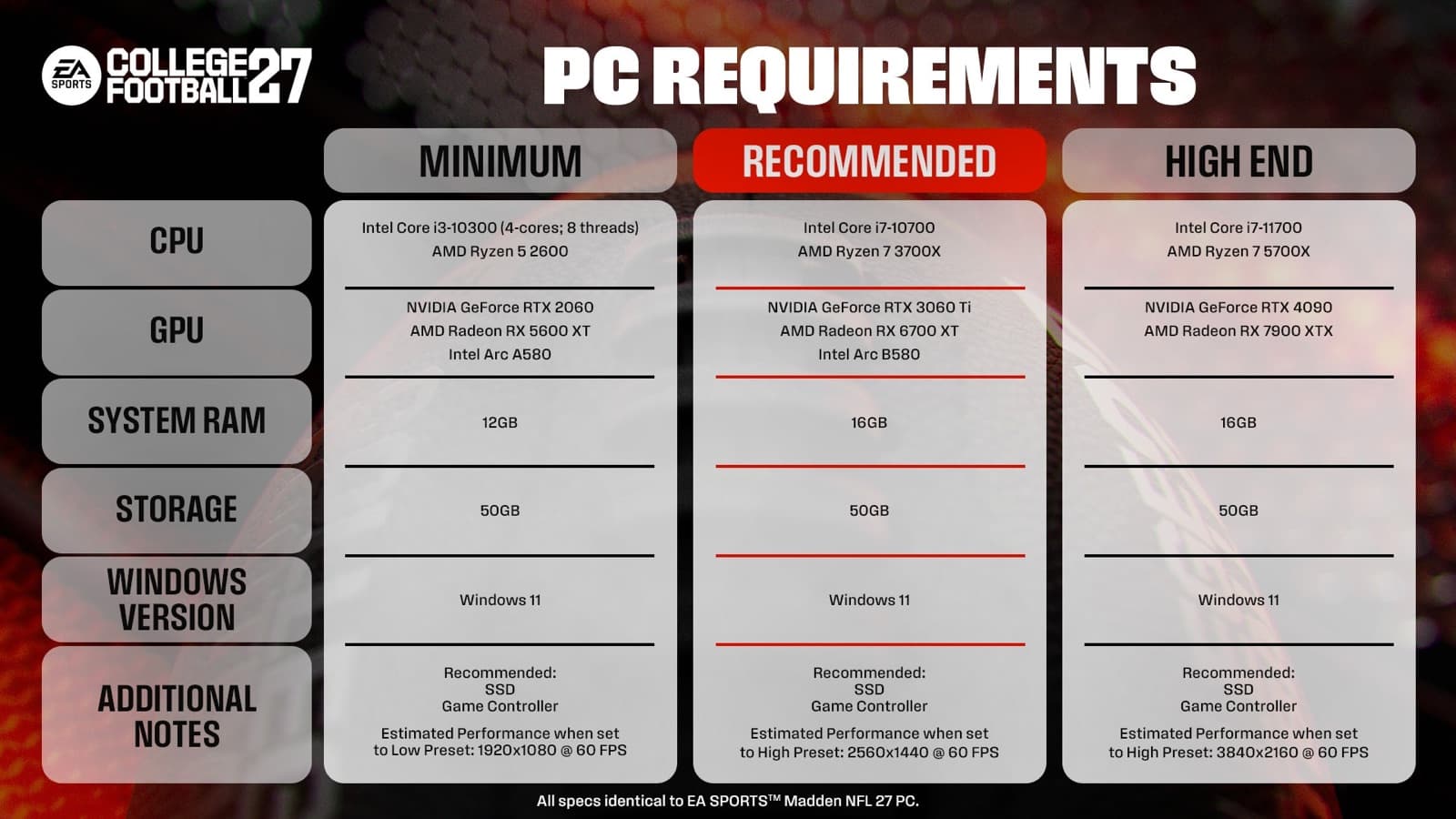
Official College Football 27 PC requirements graphic; verify the current EA page before buying or upgrading hardware.
Verified specifications · S2 / S4 / S5
Minimum versus recommended PC baseline
Compare every row, not only the GPU. The official list does not promise a universal resolution, preset, or frame rate.
| Component | Minimum | Recommended |
|---|---|---|
| Operating system | Windows 11 | Windows 11 |
| Processor | Ryzen 5 2600 or Core i3-10300 | Ryzen 7 3700X or Core i7-10700 |
| Graphics | RX 5600 XT, RTX 2060, or Arc A580 | RX 6700 XT, RTX 3060 Ti, or Arc B580 |
| Memory | 12 GB | 16 GB |
| Shared requirements | 50 GB, broadband, DirectX 12; SSD recommended; ReBAR applies to the listed Intel Arc expectation. | |
- BaselineConfirm hardware, free space, OS, and the intended graphics adapter.
- First testSet monitor, resolution, refresh rate, frame cap, then run one stock preset.
- IsolateChange one graphics category per repeatable gameplay test.
College Football 27 minimum PC specifications
EA's official minimum specification uses Windows 11. The listed AMD processor is a Ryzen 5 2600, while the Intel option is a Core i3-10300 with four cores and eight threads. The minimum graphics choices are a Radeon RX 5600 XT, GeForce RTX 2060, or Intel Arc A580. EA also lists 12 GB of memory, DirectX 12 compatibility, a broadband connection, and 50 GB of drive space.
The additional notes matter as much as the model names. EA recommends an SSD and specifies at least eight logical CPU cores. Intel Arc owners need Resizable BAR enabled to meet the expected performance described by EA. Meeting one line while missing another does not equal the complete minimum configuration, so compare the operating system, processor, graphics card, memory, storage, connection, and notes together.
- OS: Windows 11
- CPU: AMD Ryzen 5 2600 or Intel Core i3-10300 (4 cores, 8 threads)
- GPU: AMD Radeon RX 5600 XT, Nvidia GeForce RTX 2060, or Intel Arc A580
- Memory: 12 GB
- Storage and connection: 50 GB and broadband
- Other: DirectX 12 compatible; SSD recommended; at least 8 logical CPU cores; ReBAR required for listed Intel Arc expectations
College Football 27 recommended PC specifications
The official recommended tier also uses Windows 11. EA lists an AMD Ryzen 7 3700X or Intel Core i7-10700, paired with an AMD Radeon RX 6700 XT, Nvidia GeForce RTX 3060 Ti, or Intel Arc B580. Recommended memory is 16 GB. The DirectX 12, broadband, and 50 GB storage requirements remain, as do the SSD recommendation, eight-logical-core note, and Intel Arc ReBAR condition.
These specifications are a more useful planning target for a new purchase than the bare minimum, but they still do not define a universal resolution, preset, or frame-rate guarantee on the official purchase page. Drivers, background workloads, cooling, display resolution, and individual graphics choices can affect a real system. We recommend comparing the exact GPU and CPU in your machine rather than judging by the age or marketing name of the computer.
- OS: Windows 11
- CPU: AMD Ryzen 7 3700X or Intel Core i7-10700
- GPU: AMD Radeon RX 6700 XT, Nvidia GeForce RTX 3060 Ti, or Intel Arc B580
- Memory: 16 GB
- Storage and connection: 50 GB and broadband
The unbranded hardware and blank checklist form an original troubleshooting visual; use the verified requirements for decisions.
Where the PC version is available
College Football 27 is the first entry in the EA SPORTS College Football series released on PC. EA lists the EA app, Steam, and Epic as PC purchase and play options. The PC version launched alongside PlayStation 5 and Xbox Series X|S, and the official FAQ describes its gameplay experience as identical to the console version while adding PC graphics and performance controls.
The official PC deep dive also confirms cross-platform play with PC, PlayStation 5, and Xbox Series X|S in supported modes. Cross-play is not a substitute for checking the PC requirements, and it should not be interpreted as proof of every form of cross-platform progression. Use the dedicated cross-play guide for supported modes and settings rather than inferring features from storefront availability.
Start with display and frame-rate controls
The PC display menu includes Fullscreen, Borderless Window, and Windowed modes. It also lets you select the fullscreen monitor, resolution, monitor refresh rate, frame-rate cap, global visual preset, and a separate cutscene visual setting. EA explains that higher resolution increases visual detail while demanding more graphics performance, and that the frame-rate cap can be lowered for reduced load or raised for a smoother high-refresh experience when the hardware can sustain it.
Auto frame-rate options can use different targets for active gameplay and cutscenes; EA gives Auto (60/30) as an example of gameplay running at 60 frames per second and cutscenes at 30. Global presets include Low, Medium, High, and Ultra, while Auto chooses a starting point based on the hardware. Changing individual advanced options can make the displayed preset Custom, which simply means it no longer matches a stock preset.
Our recommended tuning order is resolution first, then frame-rate cap, then the global preset. Play a representative game before changing individual details. If performance is uneven, lower one setting and repeat the same scenario. Separating gameplay and cutscene quality can preserve on-field responsiveness without discarding presentation quality everywhere. This sequence is a diagnostic recommendation; EA does not require players to tune settings in this order.
Use advanced settings with a clear purpose
Advanced controls include VSync, HDR, graphics-adapter selection, and detailed visual options. VSync can reduce visible tearing by synchronizing output with the monitor, though EA notes that disabling it may reduce input latency depending on the system and display. HDR operates when both the display and Windows are configured to support it. Graphics-adapter selection is particularly relevant to systems that have both integrated and dedicated graphics processors.
Gameplay and cutscenes can be tuned independently for mesh, crowd, shadow, 3D grass, visual effects, ambient occlusion, bloom, lens flare, and depth-of-field-related options described in the official deep dive. Higher mesh, crowd, shadow, texture, and effects quality adds detail while increasing hardware demand. EA identifies SSAO as the more performance-friendly ambient-occlusion choice and GTAO as the option with richer depth.
For troubleshooting, we recommend confirming the intended graphics adapter first. Then reduce expensive background detail such as crowd, shadows, 3D grass, or effects one step at a time while leaving the resolution stable long enough to compare. If the issue is tearing rather than low performance, test VSync separately. If HDR looks incorrect, verify Windows and display support before changing unrelated quality settings. These are controlled testing suggestions, not guaranteed fixes for every PC.
Complete a clean first-launch check
Before launch, confirm Windows 11, available memory, free storage, DirectX 12 compatibility, and the exact CPU and GPU models. Install through one of EA's listed PC storefronts. Intel Arc users should verify ReBAR because EA explicitly attaches that condition to expected performance. An SSD is recommended on the official requirements page, and broadband is listed as an online connection requirement.
At first launch, use the correct graphics adapter, allow Auto to establish a baseline if desired, and check that the selected monitor, resolution, and refresh rate match your intended display. Run a full quarter or another repeatable stretch of gameplay before judging the configuration. Cutscenes and gameplay have separate controls, so identify where a slowdown occurs before changing both groups.
If the game does not launch or remains unstable at conservative settings on a system that meets every published line, record the storefront, hardware, driver version, and exact error. Then consult EA's current College Football 27 support material. Avoid assuming that a visual preset can correct an account, installation, or connection error. Good troubleshooting isolates the category first and changes one variable per test.
- Compare every component with the official minimum or recommended list.
- Confirm at least 50 GB of free installation space and a broadband connection.
- Select the intended GPU, monitor, resolution, refresh rate, and frame-rate cap.
- Test a stock preset before changing individual advanced settings.
- Document repeatable symptoms before contacting official support.