Direct answer
Use College Football 27 Team Builder from a desktop browser: sign in with an EA Account, create a school or customize an existing team, complete the Brand, Uniforms, Stadium, Program, and Roster areas, save, review the summary, and submit. After submission, import the team for Play Now, Dynasty, or Road to Glory. EA requires an internet connection and says Team Builder cannot be used while you are logged into the game. Plan the identity before editing; that planning order is our recommendation, not an EA requirement.
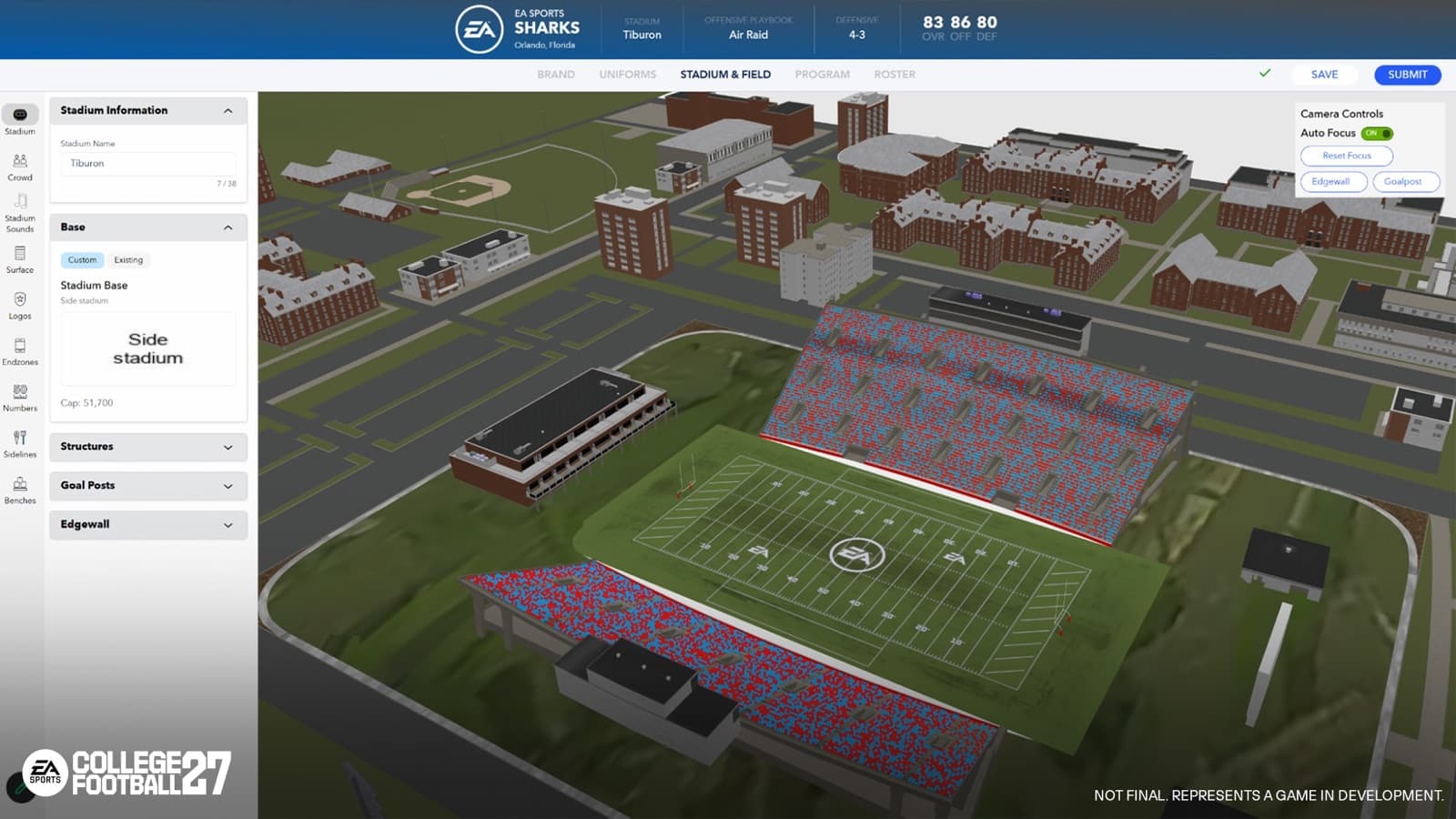
Official Team Builder stadium-editor capture showing the custom venue workspace and preview. Official pre-release development capture; the live interface may differ.
Verified workflow · S3 / S17
The six-stage build board
Use this board as an editorial working order. EA confirms the tools and import destinations; the sequence keeps one fictional program coherent from first idea to in-game use.
- 01Access
Use a desktop browser, the correct EA Account, and close the active game session.
- 02Identity
Set one program story, a restrained palette, and marks you are allowed to upload.
- 03Uniforms
Check helmet, jersey, and pants contrast before adding alternate details.
- 04Stadium
Match venue scale, field, crowd logic, and audio triggers to the program story.
- 05Program
Align playbooks, roster roles, hometowns, ratings, and dealbreakers.
- 06Publish
Save, review every tab, submit, import, and record changes before a later reimport.
| Destination | Use | Check before import |
|---|---|---|
| Play Now | Import the submitted program for an exhibition. | Final visual and roster review. |
| Dynasty | Start with the submitted school; update during the supported offseason action. | A reimport is comprehensive, not a single-asset patch. |
| Road to Glory | Use Team Builder programs in the supported high-school and college setup. | Confirm the correct published version before selection. |
Meet the access requirements first
EA's Team Builder runs on its website and is intended to be opened in a desktop browser. It requires an EA Account and internet connection, and a platform or service account may also be required. Age restrictions can apply. EA also warns that Team Builder is unavailable while the user is logged into College Football, so exit the game session before beginning or troubleshooting the site.
Our recommendation is to confirm the EA Account matches the account you use for College Football 27 before investing time in a build. Then collect original logos, a small color palette, school and stadium names, and a rough roster concept in one folder. That preparation is not required by EA, but it reduces contradictory choices across the editor. Any uploaded or created material must follow EA's Rules of Conduct and User Agreement; content that violates those rules can be removed.
- Use a desktop browser with a working internet connection.
- Sign in to the correct EA Account and exit the active game session.
- Use content you are entitled to upload and that complies with EA rules.
Choose one identity before opening every tab
The editor can start from an existing team or a new creation. Its major areas cover Brand, Uniforms, Stadium and Field, Program, and Roster. Because each area can be edited independently, it is easy to create attractive pieces that do not feel like the same school. EA does not prescribe a creative order, so the workflow here is a practical recommendation.
Write a one-sentence identity first: location, program scale, visual personality, and football approach. From that sentence, select one primary color, one supporting color, a restrained accent, a main logo, and a secondary mark. Decide whether the program is a new local school, an established fictional power, or another concept you can express consistently. Revisit the identity sentence before saving each tab. If an option does not reinforce it, leave it out even when the option looks impressive on its own.
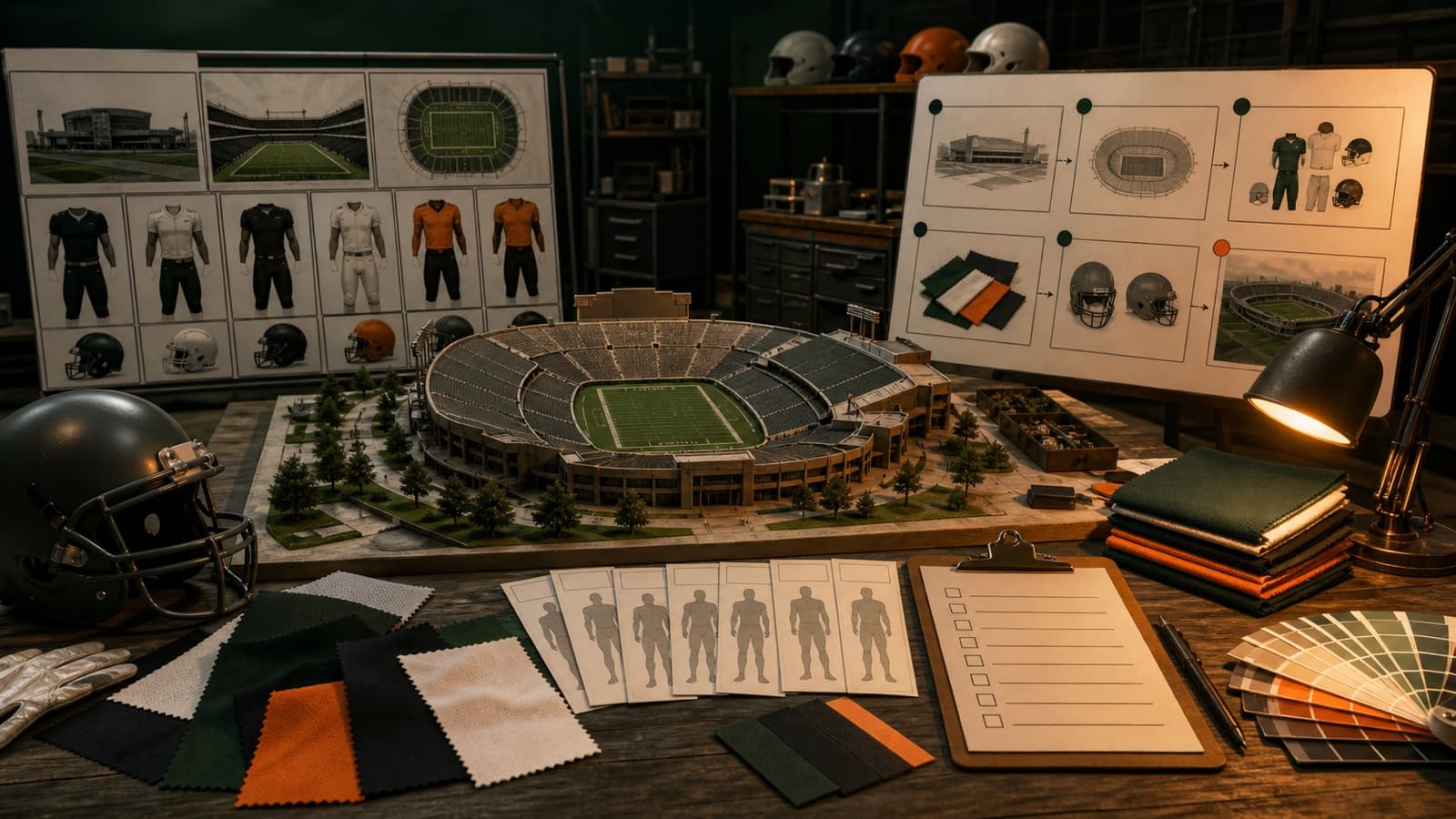
This original workshop visual uses fictional, unbranded elements while the guide documents the verified creation workflow.
Build the brand and uniforms as one system
The Brand area supports logos, a color palette, apparel brand, and fonts. The Uniform area supports home and away designs with choices for helmet, jersey, and pants across styles, textures, and colors. Premade designs can be used, original creations can be uploaded, and the download center can be browsed for community teams. These tools provide flexibility, but they do not guarantee that every combination will remain readable during gameplay.
Our recommendation is to establish the helmet and number contrast before decorative details. Preview the home set against the darkest likely opponent and the away set against a light opponent. Keep logo variants and stripe patterns consistent across helmet, jersey, and pants. If you add alternate combinations, make sure the core school is still recognizable when pieces are mixed. Save after each stable milestone rather than waiting for the entire team, and use the final submission summary as a last consistency check rather than the first time you review the design as a whole.
Design a stadium that matches the program story
College Football 27 adds Stadium Builder. A Team Builder school can use an existing venue or a custom one. The custom route starts from one of four base stadiums, ranging from a higher-end high school style to small and mid-sized venues. Depending on the base, editable structures can include the backdrop, jumbotron, end-zone building, and edge wall. Goalpost style, color, and pad branding can also be customized, and a 3D viewer previews the result.
Crowd controls include base colors, percentage splits, and conditional stripe-out themes. Triggers can react to circumstances such as night games, ranked matchups, rivalries, or a first conference game, with up to five triggers configured. Our recommendation is to match capacity and presentation to the program's intended scale, then use the 3D preview from multiple angles. A smaller venue can support a rebuild story more coherently than the largest available setting. Use crowd triggers sparingly so special games still look special.
Create a soundscape with deliberate triggers
The Stadium and Field area includes an audio suite built around in-game events. A soundscape can layer crowd chants, band rousers, effects, fight songs, and PA tracks on a timeline, with control over start time, delay, and how tracks overlap. EA's deep dive also confirms commentary nickname options and rivalry-aware commentary for selected rival schools. The official workflow describes choosing audio from Team Builder's available selections.
Our suggested method is to build one event at a time. Start with a touchdown or defensive stop, choose a lead sound, then add only the layers that remain clear in the preview. Repeatedly stacking every available category can make individual cues indistinct. Give rivalry moments their own character and keep routine first-down or kickoff cues shorter. This is creative advice, not an official audio rule. The goal is a stadium identity that responds consistently to game events without every trigger competing for attention.
Align the program and roster with the on-field plan
The Program tools provide a team overview and let creators adjust player appearance, physical attributes, college year, and skill ratings. The Strategy menu selects offensive and defensive playbooks. The Roster area can adjust player names, hometowns, appearances, ratings, abilities, and dealbreakers. Team Builder can therefore connect the visual concept to the football identity rather than stopping at uniforms and logos.
Our recommendation is to choose playbooks before fine-tuning the roster. Then audit whether the personnel supports the intended system, position by position, without turning every player into the same kind of star. Use consistent naming and hometown conventions that fit the program concept. Check physical attributes and appearances for accidental outliers. The editor exposes many controls, but a coherent roster usually has strengths, development needs, and role differences. This is a design suggestion, not a claim about hidden gameplay bonuses.
Save, submit, import, and update carefully
EA's published sequence is to save the project, select Submit, review the customization summary, and confirm the submission. A submitted team can then be imported for Play Now, Dynasty, or Road to Glory. College Football 27 also expands integration: created historical records can be defined, location can influence Proximity to Home through the selected city's coordinates, and regional weather and time of day can follow that city. Road to Glory can use Team Builder programs in high school and college setup.
In Dynasty, an offseason action can reimport the latest published version of a Team Builder school. EA states that this is a full update: logos, uniforms, fields, stadiums, and crowd logic are brought in from the website version. Our recommendation is to keep a short change log and inspect every tab before reimporting into a long-running save. Do not assume the update will touch only the one item you just edited. Preserve screenshots or notes for the prior version, confirm the website build is final, and only then run the offseason update.
- Save the current website project and review every editor tab.
- Submit and confirm the on-screen summary.
- Import the published team into the intended supported mode.
- Before a later Dynasty reimport, verify the complete website version because the update is comprehensive.