Direct answer
Learn College Football 27 controls by grouping them around decisions rather than memorizing every prompt at once. First practice bullet, lob, and touch passes with the matching possession, RAC, or aggressive catch. Then learn the three-stage kick meter, your platform's audible menu, and the same-personnel rule for formation changes. Finish with celebrations only after the result is secure. Review defaults on the Controls screen; the game has no in-game button remapping.
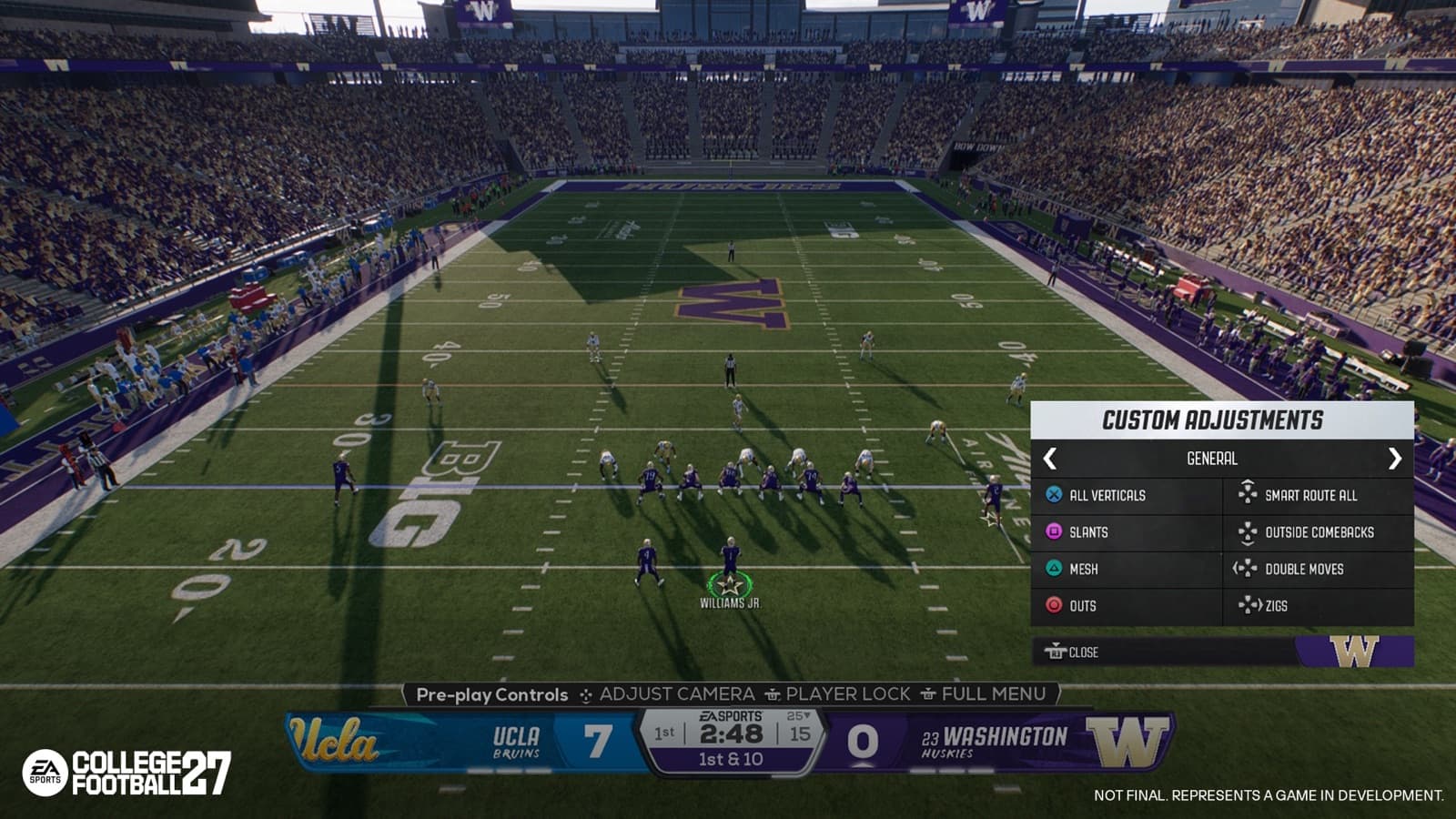
Official College Football 27 Custom Adjustments capture showing a saved pre-play menu. Official pre-release development capture; the live interface may differ.
Start with the current layout for your device
College Football 27 is available with different control prompts across PlayStation, Xbox, and PC, so the screen in front of you is the final authority. The official gameplay and Help pages describe the same football actions, but a console face button and a PC key are not interchangeable labels. EA says the game has no button remapping, but its full control layout is viewable. If you switch between keyboard and controller or use an accessibility option, verify the active Controls screen before following any written sequence. This guide names exact inputs only where the official platform instructions publish them.
Treat the layout as a set of small families: pre-snap offense, passing, receiving, ball carrying, defense, special teams, and celebrations. Learn one family in Practice rather than scanning the complete chart during a live game. The On Field Trainer and visual feedback options can expose hints for passing, catching, tackling, and pass rushing, while enlarged on-field graphics and receiver visual assistance can make prompts easier to read. Those settings support learning; they do not choose the football decision for you.
Match bullet, lob, and touch passes to the route
EA Help separates three basic pass trajectories. Hold the displayed receiver button until release for a bullet pass, tap it quickly for a lob, and briefly hold then release for a touch pass. A bullet arrives with maximum velocity and suits quick in-breaking routes or a window that is closing. A lob adds air for a deep route or a defender who is trailing. A touch pass sits between them and can clear underneath coverage while dropping into space before a deeper defender arrives.
The control matters only after the read. Identify the route, leverage, and open area before deciding how long to engage the receiver prompt. Pass leading uses the left stick during the throw to guide the ball toward space and away from coverage, but it is not permission to force a covered target. Our recommendation is to run the same concept repeatedly and change only the pass type. That controlled comparison makes an overthrown lob, late bullet, or correctly layered touch pass easier to diagnose.
Choose the catch before the ball arrives
The official catching guide defines possession, run-after-catch, and aggressive catches as different outcomes, not three grades of the same command. A possession catch prioritizes securing the ball, making it appropriate in traffic, near a sideline, or when reaching the line to gain is more important than extra yards. A RAC catch helps the receiver transition upfield when open space follows a drag, crosser, or similar route. An aggressive catch asks the receiver to compete at the catch point in a jump-ball or tightly covered situation.
Make that choice while the pass is traveling. Waiting until contact makes the result feel random because the intended outcome arrives too late. In Practice, call one route against several looks and say possession, RAC, or aggressive before selecting it. Timing Based Catching adds another execution layer in College Football 27, but the tactical question remains stable: secure, turn upfield, or contest. No catch type guarantees success, and this guide does not assign an unpublished success percentage to any input.
Read all three stages of the kicking meter
Field goals, kickoffs, and punts use a meter that records power and accuracy. EA Help describes a three-press sequence: start the meter, set power, then set accuracy. The third input should stop the accuracy indicator near the center. Field-goal results can also reflect distance, kicker ratings, weather, and pressure, so a miss is not always evidence that the first meter input was wrong. Use the kick button shown for your active platform and control scheme rather than assuming one universal face button or key.
Kickoffs use the same three-stage structure and allow aiming with the left stick before the kick. Punts also set power and accuracy, with directional placement offering a way to manage field position. Practice from several distances and hashes instead of repeating only an easy central attempt. Record whether the error came from aim, power, or the final accuracy stop. That recommendation turns the visible feedback into a useful diagnosis without inventing a hidden timing window or claiming that one meter speed works for every kicker.
Call audibles on PlayStation, Xbox, and PC
At the line, the official default audible menu opens with Square on PlayStation, X on Xbox, and Q on PC. PlayStation assigns the four listed audible choices to Square, Triangle, L1, and R1; Xbox uses X, Y, LB, and RB; PC uses the number keys 1 through 4. The published reset, flip, and close inputs are L2, R2, and R3 on PlayStation; LT, RT, and RS on Xbox; and R, F, and Tab on PC. Confirm these defaults on the in-game Controls screen before relying on a written sequence.
An audible changes the play before the snap, but the available formation change is limited by personnel. EA Help says the destination formation must use the same combination of players already on the field. A three-wide-receiver grouping therefore cannot become a grouping that requires different personnel through that formation audible. Cycle left or right with the directional pad on consoles or arrow keys on PC, then choose an available play. Prepare a small answer for pressure and another for a coverage look rather than opening the menu without a reason.
Use celebrations after the football result is safe
EA Help documents celebrations during a run and after the play. During a run, the default combination is both triggers plus X on PlayStation, LT plus RT plus A on Xbox, and E plus Left Shift plus Left Ctrl on PC. After a score or big play, console players can flick the right stick in a direction, while PC players can use W, A, S, or D; different directions or keys select different celebrations. More combinations are listed under More, Profile, then Celebration from the main menu.
Those are official inputs, not a recommendation to celebrate before every score. A live-ball celebration consumes attention while the runner is still vulnerable, so our advice is to learn it in Practice and reserve it for a situation where the outcome is secure. Post-play celebrations answer the same search intent with less football risk. If the animation does not appear, first confirm that the play state allows it and that your input sequence matches the published default before assuming the feature is unavailable.
Finish with a ten-minute control practice checklist
Use Practice Mode or Skills Trainer to isolate inputs from score and clock pressure. Spend two minutes on one passing concept, calling the receiver and trajectory before release. Spend two minutes choosing a catch type before contact. Use another two minutes on field goals from changing distances, then one minute each on kickoffs and punts. Finish with audible changes from one personnel grouping and a safe celebration rehearsal. This schedule is our suggested drill, not an official requirement or a promise of mastery in ten minutes.
- Run one concept with all three pass trajectories.
- Repeat one route with possession, RAC, and aggressive catch intentions.
- Attempt field goals, kickoffs, and punts while naming each meter stage.
- Call, reset, flip, and close an audible on your active platform.
- Test celebrations only after the scoring or big-play condition is clear.